Is your Neato vacuum acting up, stuck in a loop, unresponsive to commands, or failing to connect to Wi-Fi? A reset can often resolve these issues quickly and restore smooth operation. Whether you own a Neato Botvac, D Series, or X Series, knowing how to reset your robot vacuum properly is essential for troubleshooting glitches and maintaining peak performance.
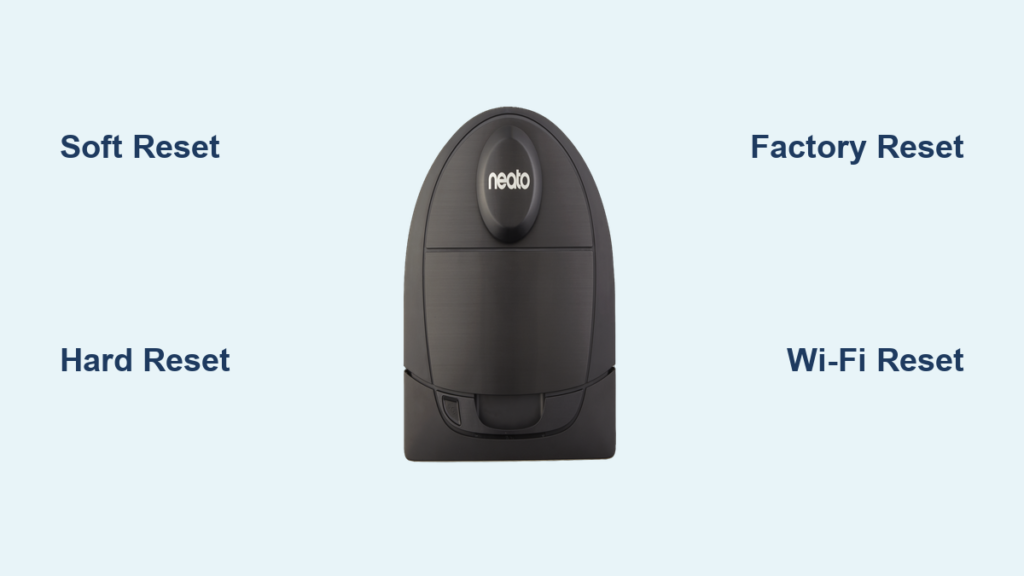
In this guide, you’ll learn the correct ways to soft reset, hard reset, and factory reset your Neato vacuum, depending on your model and issue. These steps are verified for common Neato models and will help you avoid unnecessary service calls. Let’s walk through the exact reset procedures, when to use each one, and what to expect afterward.
Reset Methods for Neato Vacuums
Neato offers several reset options depending on the problem. A soft reset may fix minor software hiccups, while a factory reset is best for persistent connectivity or behavior issues. Always start with the least invasive method first.
Soft Reset: Restart the Vacuum
A soft reset reboots the system without erasing settings. Use this for unresponsiveness or temporary errors.
- Press and hold the Start button for 10 to 15 seconds.
- Wait for the vacuum to power down completely.
- Wait 10 seconds, then press Start again to power it back on.
This quick reboot clears temporary glitches and often resolves freezing or error messages.
Pro Tip: Perform a soft reset after a low battery shutdown or if the vacuum fails to start normally.
Hard Reset: Clear Internal Errors
Use a hard reset when the vacuum shows error codes or won’t respond to the soft reset.
- Ensure the vacuum is powered off.
- Press and hold Start and Spot buttons simultaneously.
- Keep holding for 10 seconds until you hear a beep or see lights flash.
- Release the buttons and wait 10 seconds.
- Power the vacuum back on with the Start button.
This clears internal error flags and resets the motor and sensor systems.
Factory Reset: Restore Default Settings
A factory reset erases all custom settings, saved maps, and Wi-Fi connections. Use it only when other resets fail or before selling the unit.
For Neato D Series and Botvac Connected Models
- Power off the vacuum.
- Press and hold Start, Spot, and Edge Clean buttons.
- Hold all three for 10 seconds until lights flash and a voice prompt says, “Wi-Fi has been reset” or “Factory reset in progress.”
- Release the buttons.
- Wait for the vacuum to restart automatically.
After this process:
– All saved maps are deleted.
– Wi-Fi network credentials are cleared.
– You must reconnect the vacuum to your app and reconfigure cleaning schedules.
Note: X Series models (like the XV-25) do not support full factory resets via button combinations. Use the Neato app instead.
Fix Wi-Fi Connection Issues

If your Neato won’t connect to Wi-Fi, a reset may be the fix. Start with a soft reset, then proceed to factory reset if needed.
No Wi-Fi After Power Outage
Power outages can disrupt network syncing.
- Restart your home router.
- Perform a soft reset on the vacuum.
- Open the Neato app and tap Add Robot if it doesn’t reconnect automatically.
Vacuum Not Appearing in App
If the app doesn’t detect your vacuum:
- Ensure the vacuum is on and near the router.
- Confirm 2.4 GHz Wi-Fi is active (Neato does not support 5 GHz).
- Factory reset the vacuum.
- Re-pair using the Neato app.
Warning: After a factory reset, you must re-add the robot in the app like a new device.
Clear Navigation and Mapping Errors
Stuck mapping, erratic paths, or failure to return to base may require a reset.
Map Not Saving or Corrupted
Some models store maps in memory. If maps disappear or get corrupted:
- Perform a factory reset.
- Run a full mapping cycle in the largest room.
- Avoid interruptions during the first clean.
Pro Tip: Keep the vacuum on the same floor after mapping. Moving it to another level can confuse navigation.
Robot Spins or Gets Stuck
If your Neato spins in place or avoids certain areas:
- Clean sensors with a dry microfiber cloth.
- Perform a hard reset.
- Restart a new cleaning job.
Resetting recalibrates motor balance and sensor interpretation.
Replace and Reset After Battery Swap
Swapped in a new battery? Reset ensures proper recognition.
Install New Battery Correctly
- Power off the vacuum.
- Open the battery compartment.
- Insert the new battery, ensuring connectors align.
- Close the compartment securely.
Reset After Battery Replacement
- Press and hold Start for 15 seconds to power on.
- Wait for startup chime.
- Run a short cleaning cycle to confirm battery detection.
Note: Some older models may take 2 to 3 full charge cycles to calibrate the new battery.
Troubleshoot Persistent Error Codes
Neato displays error codes like E1, E4, or E6. Resetting often clears them.
E1: Wheel Obstruction
- Check for tangled debris.
- Lift and reposition the vacuum.
- Perform a hard reset.
E4: Charging Issue
- Clean charging contacts on vacuum and base.
- Ensure base is on bare floor (not carpet).
- Soft reset, then retry docking.
E6: Sensor Error
- Wipe cliff and bumper sensors.
- Reset using hard reset method.
- Test on hard flooring.
If errors return after reset, inspect hardware or contact support.
Prepare for Resale or Transfer
Before giving away or selling your Neato, protect your data.
Wipe Personal Information
- Factory reset the vacuum.
- Remove the robot from your Neato app.
- Delete any stored maps or schedules.
This ensures your home layout and usage data aren’t accessible to the next user.
Maintain Performance After Reset
After any reset, follow these steps to prevent future issues.
Reconfigure Cleaning Schedules
- Open the Neato app.
- Add your robot if needed.
- Set new cleaning times and zones.
Re-Enable No-Go Lines and Smart Zones
If you use virtual boundaries:
– Recreate No-Go Lines in the app.
– Save updated maps after each full clean.
Update Firmware
After reset, check for updates:
1. Open the Neato app.
2. Go to Settings > Firmware Update.
3. Install any available updates.
Updated firmware improves stability and may prevent the need for future resets.
Frequently Asked Questions About Resetting a Neato Vacuum
How do I perform a soft reset on my Neato vacuum?
Press and hold the Start button for 10 to 15 seconds until the vacuum powers off. Wait 10 seconds, then press Start again to turn it back on. This clears minor glitches without deleting saved settings.
What is the difference between a soft reset and a factory reset?
A soft reset only restarts the system and keeps your settings intact. A factory reset erases all custom settings, saved maps, and Wi-Fi credentials, returning the vacuum to its original state.
Will resetting my Neato delete my cleaning maps?
A soft or hard reset will not delete your maps. Only a factory reset clears saved maps and Wi-Fi data, requiring you to remap your home.
Why won’t my Neato connect to Wi-Fi after a reset?
Your router may broadcast on 5 GHz, which Neato vacuums do not support. Ensure 2.4 GHz is active, restart your router, and re-add the robot in the Neato app.
How long does a Neato factory reset take?
The button-based factory reset finishes in about 10 to 15 seconds. However, full reconfiguration, including remapping and app re-pairing, can take 20 to 30 minutes.
Can I reset a Neato XV-25 using buttons?
No. The XV-25 and similar X Series models do not support factory resets through button combinations. Use the Neato app to perform a factory reset instead.
Key Takeaways for Resetting Your Neato Vacuum
Knowing how to reset a Neato vacuum gives you control over common issues without needing technical help. Use soft resets for quick fixes, hard resets for error codes, and factory resets when re-pairing or transferring ownership. Always follow model-specific steps and allow time for reconfiguration after a reset. With proper care, your Neato will keep delivering reliable, hands-free cleaning. Start with a soft reset today, and you’ll likely resolve most minor issues in under a minute.