Is your robot vacuum stuck mid-clean, ignoring app commands, or completely unresponsive? These frustrating issues often point to a software glitch that a simple reset can fix. Knowing how to reset a robot vacuum saves you time, money, and unnecessary support calls. This guide covers iRobot Roomba and Braava models, the most popular robot vacuums on the market today.
You will learn the exact button sequence to perform a reset, what data gets erased, how to reconnect Wi-Fi afterward, and what to do if problems continue. We will also cover maintenance tips to keep your robot running smoothly and how to prepare the device for a new owner.
Perform a Standard Reset on Your Robot Vacuum
The reset process for iRobot Roomba and Braava models takes less than 30 seconds and requires no tools. This method clears temporary errors and forces a complete system reboot.
Press and Hold the Clean Button for 10 Seconds
Locate the Clean button on the top of your robot. Press and hold it for 10 seconds without releasing, even if the lights change or start flashing during the countdown. After 10 seconds, let go of the button. You will hear an audible beep and see the indicator lights flash, which confirms the reset was successful.
This action clears software hang-ups and restores default behavior. Use this method when your robot is unresponsive, keeps disconnecting from the app, or behaves erratically. No app access or special tools are required.
Understand What Gets Erased During a Reset
A reset wipes all personal data stored on the device, including:
- Custom cleaning schedules
- Saved Wi-Fi network name and password
- Map data on mapping-capable models
- App pairing information
Your robot will function like a brand new unit after the reset. You must reconnect it to Wi-Fi and re-pair it with the iRobot HOME app to restore smart features. The robot can still clean manually without the app, but remote control and scheduling will not work until reconnection is complete.
Reconnect Your Robot to Wi-Fi After Resetting

Resetting removes your robot from your home network. Restoring connectivity is necessary for app control, voice commands, and scheduled cleanings.
Open the iRobot HOME App and Add Your Robot
Launch the iRobot HOME app on your smartphone. Tap “Add Robot” to begin the setup process. The app will walk you through each step automatically. Make sure your phone is connected to the same Wi-Fi network you want your robot to use, ideally a 2.4 GHz band, since most models do not support 5 GHz.
Follow the on-screen prompts to select your robot model. The app uses Bluetooth first to detect nearby robots, then switches to Wi-Fi for full connectivity.
Enter Your Wi-Fi Network Details
When the app prompts you, select your home Wi-Fi network from the list and type in the password. Remember that Wi-Fi passwords are case-sensitive, so enter it exactly as it appears on your router settings. The connection process may take 1 to 2 minutes to complete.
Once connected, the app displays a confirmation message. Your robot is now ready for scheduled cleanings, remote control, and integration with voice assistants like Alexa or Google Assistant.
Fix Common Problems After Resetting
Sometimes a reset alone does not solve every issue. Use these troubleshooting steps if your robot still misbehaves after a successful reset.
Robot Will Not Turn On
If your robot shows no signs of life after the reset, the battery is likely drained. Plug the device into its charging dock and let it charge for at least 3 hours before testing it again. Some models require a short press of the Power button to wake the system after a full shutdown.
If charging does not help, try these steps:
- Check the charging dock for dust or debris
- Clean the metal charging contacts on both the robot and the dock
- Test a different wall outlet to rule out a power issue
A deeply discharged battery can take several hours to show any indicator lights.
App Cannot Find Your Robot
When the iRobot HOME app fails to detect your robot, work through this checklist:
- Confirm both your phone and robot are on the same 2.4 GHz Wi-Fi network
- Restart your router to refresh the network connection
- Press the Clean button briefly to restart the robot
- Reinstall the iRobot HOME app if the problem continues
Cached data in the app can sometimes block detection. A clean reinstall often resolves stubborn pairing issues.
Keep Your Robot Vacuum in Top Condition
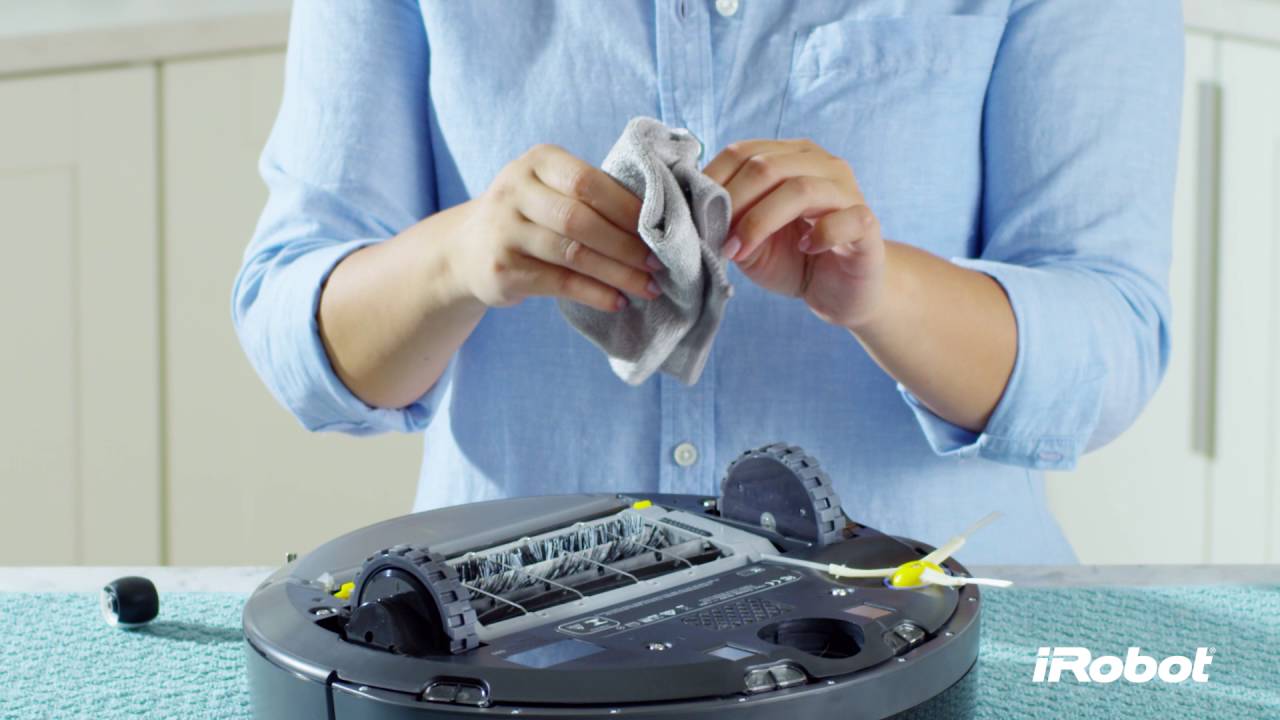
A reset addresses software issues, but hardware problems can create similar symptoms. Regular maintenance prevents most performance issues.
Clean Brushes, Sensors, and Wheels
Dirty components lead to poor navigation and weak suction. After a reset, inspect and clean these parts:
- Main brush roll for hair and debris wrapped around it
- Side brushes for tangles, cracks, or missing bristles
- Cliff sensors and bump sensors for dust buildup
- Wheels for hair or debris that may block rotation
Use a soft, dry cloth for sensors. Remove tangled hair from brushes using scissors or a seam ripper for best results.
Empty the Dustbin and Maintain the Filter
A full dustbin reduces suction power and may trigger error codes. Empty the dustbin after every cleaning run. Wash or replace the filter according to the manufacturer’s schedule, typically every 1 to 2 months depending on usage.
A clean robot operates more efficiently and avoids the overheating or clogging issues that often lead to repeated resets.
Prepare Your Robot for a New Owner
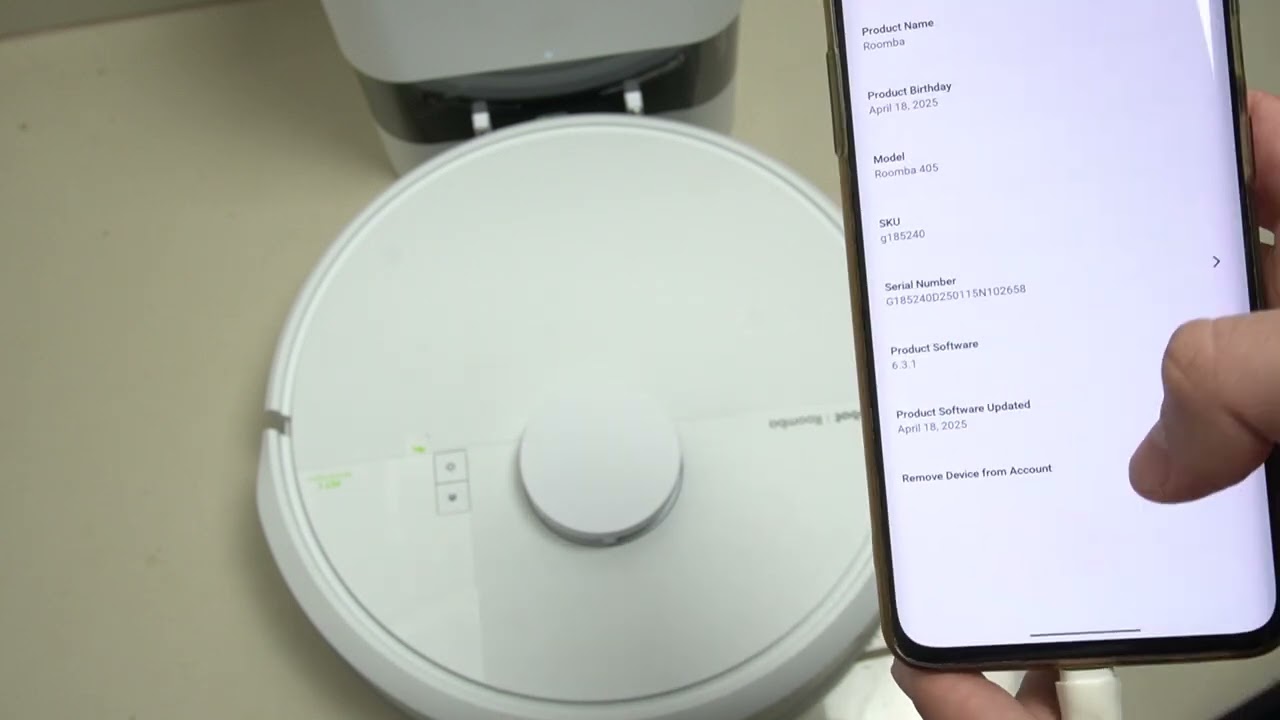
If you plan to sell or gift your robot vacuum, a reset protects your personal information and ensures a smooth setup for the next user.
Erase All Personal Data Before Transfer
Resetting removes all Wi-Fi credentials, map data, and account pairings, so the new owner can set up the device from scratch. For complete peace of mind, take these extra steps:
- Delete the robot from your iRobot account within the app
- Remove any saved maps if your model supports mapping
- Perform the reset on the same day you hand over the device
This clean handoff prevents connection conflicts and protects your home network security.
Find Official Support and Documentation
When you need help beyond a basic reset, official iRobot resources offer model-specific guidance and live support options.
Visit the iRobot Support Website
Go to the official iRobot Support website to access:
- Downloadable user manuals
- Step-by-step troubleshooting guides
- Firmware update instructions
- Contact forms for live technical support
Enter your robot’s model number to find precise information tailored to your device. Manuals often include reset variations for older or newer models that may differ slightly from the standard procedure.
Download Your User Manual for Quick Reference
User manuals include detailed reset instructions, button diagrams, and explanations of error codes. Save a digital copy on your phone so you can reference it during troubleshooting sessions. If you do not know your model number, check the bottom of the robot or inside the dustbin compartment.
Frequently Asked Questions About Resetting a Robot Vacuum
How long do I hold the Clean button to reset a Roomba?
Press and hold the Clean button for 10 seconds. Release the button when you hear a beep and see the indicator lights flash. This confirms the reset is complete.
Will resetting my robot vacuum delete my maps?
Yes, a reset erases all saved map data on mapping-capable models. You will need to remap your home after reconnecting the robot to Wi-Fi and the iRobot HOME app.
Do I need to reset my robot vacuum before selling it?
Yes, performing a reset before selling or gifting your robot is strongly recommended. The reset removes your Wi-Fi credentials, account pairings, and map data, protecting your privacy and allowing the new owner to set up the device as new.
Why is my robot vacuum not connecting to Wi-Fi after a reset?
After a reset, your robot forgets all network settings. Open the iRobot HOME app, tap “Add Robot,” and follow the prompts to reconnect. Make sure your phone and robot are on the same 2.4 GHz network, and double-check that the Wi-Fi password is entered correctly.
How long should I charge my robot vacuum if it will not turn on?
Charge the robot for at least 3 hours using the original charging dock. A deeply discharged battery needs this much time to recover enough power to respond. Clean the charging contacts on both the robot and dock before charging to ensure a solid connection.
Key Takeaways for Resetting Your Robot Vacuum
Resetting a robot vacuum is one of the fastest ways to resolve software glitches, connectivity issues, and unresponsiveness. The process is simple: press and hold the Clean button for 10 seconds, wait for the beep and flashing lights, and release. Remember that this action erases all saved settings, including Wi-Fi credentials and map data, so you will need to reconnect your robot through the iRobot HOME app afterward.
For best results, combine resets with regular maintenance. Clean the brushes, sensors, and dustbin frequently to prevent hardware issues that mimic software problems. If you are preparing to sell your device, always perform a reset on the same day you hand it over to protect your personal data and ensure a smooth experience for the new owner.