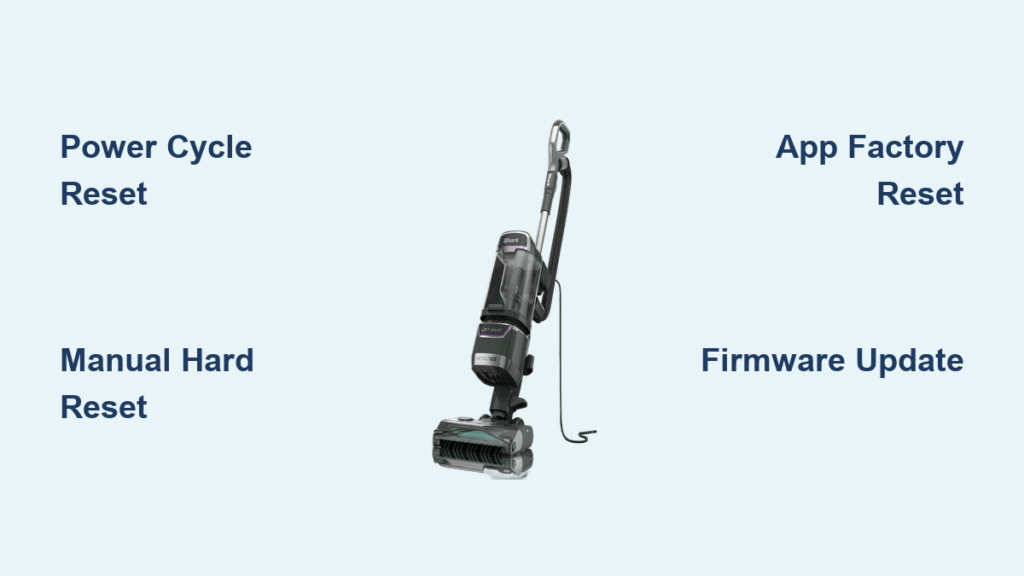
Is your Shark vacuum flashing error messages, dropping Wi-Fi, or constantly telling you to “reboot me” mid-cleaning? You are not alone. These glitches are common with smart robot vacuums like the Shark RV750 and Shark AI Ultra. The good news is that most issues can be fixed without a service call. Learning how to reset a Shark vacuum the right way saves you time, frustration, and money.
Below you will find four reliable reset methods, step-by-step instructions for each Shark model, and troubleshooting tips for stubborn problems like Wi-Fi drops and charging errors. You will also learn the critical 2.4GHz Wi-Fi requirement, what data gets erased, and what to do when nothing works. By the end, you will know exactly how to restore your robot to peak performance.
App-Based Factory Reset (Shark Ion App)

Use this method when your vacuum connects to the Shark Ion App without issues. It is the most complete reset and wipes all stored data.
When to Use the App Reset Method
- Your vacuum will not reconnect to Wi-Fi after a router change
- The app shows outdated settings or wrong status
- You are selling or gifting the device and want to erase personal data
Step-by-Step Instructions
- Open the Shark Ion App on your smartphone
- Confirm your phone and vacuum are on the same Wi-Fi network
- Tap Settings in the app menu
- Select Factory Reset
- Confirm the action when prompted
The vacuum erases all saved data and restarts automatically. You will need to reconfigure Wi-Fi, schedules, and preferences afterward.
⚠️ Warning: This deletes every saved Wi-Fi network, cleaning schedule, and custom setting. Only use it when other fixes fail.
Alternative: SharkClean App for Firmware Fixes
Some models use the SharkClean app instead. It may not have a “Factory Reset” button, but it handles firmware updates that often clear stubborn bugs.
To check for updates:
– Open SharkClean app
– Go to device settings
– Tap Firmware Update
– Install any available updates
One user reported the “reboot me” message disappeared after updating. Another noted the same problem came back after a later update, so results can vary.
Manual Hard Reset (No App Required)
This method works when the app is unresponsive or Wi-Fi is unavailable. It forces a hardware-level reboot without any software.
Why a Manual Reset Works
A hard reset bypasses software locks and clears temporary memory, much like restarting a frozen computer. It often fixes glitches that the app cannot reach.
How to Reset a Shark RV750 Manually
- Turn the vacuum upside down
- Find the side power button (not the Clean or Spot button)
- Press and hold the side power button for 10 seconds
- Keep holding until the unit powers off completely
- Wait 10 seconds, then press the button again to turn it back on
How to Reset a Shark AI Ultra Manually
- Press and hold the power button for 10 seconds until the lights flash
- Release the button and let the vacuum reboot
- Try running a cleaning cycle
✅ Pro Tip: Make sure the battery is at least 20% charged before resetting. Low power can prevent the reset from starting.
Power Cycle Reset (The Quick Fix)

The simplest method of all, and often the most effective for minor hiccups.
When a Power Cycle Is Enough
Use this when your Shark vacuum freezes mid-cycle, refuses to turn on, or shows a brief error. A power cycle clears residual electrical charge and resets internal circuits.
Steps to Power Cycle Your Vacuum
- Remove the vacuum from the charging dock
- Unplug the dock from the wall
- Wait 2 to 3 minutes
- Plug the dock back in
- Place the vacuum on the dock and power it on
🔄 Note: Some users say this stops the “reboot me” message temporarily. If it returns, the root cause may be firmware or hardware related.
Charging Dock Tips to Prevent Errors
- Place the vacuum on a flat surface to avoid triggering tilt sensors
- Tighten any loose screws on the charging dock
- Wipe charging contacts weekly with a dry cloth
A stable dock connection prevents false low-battery alerts and random shutdowns.
Fix Wi-Fi Connection Issues
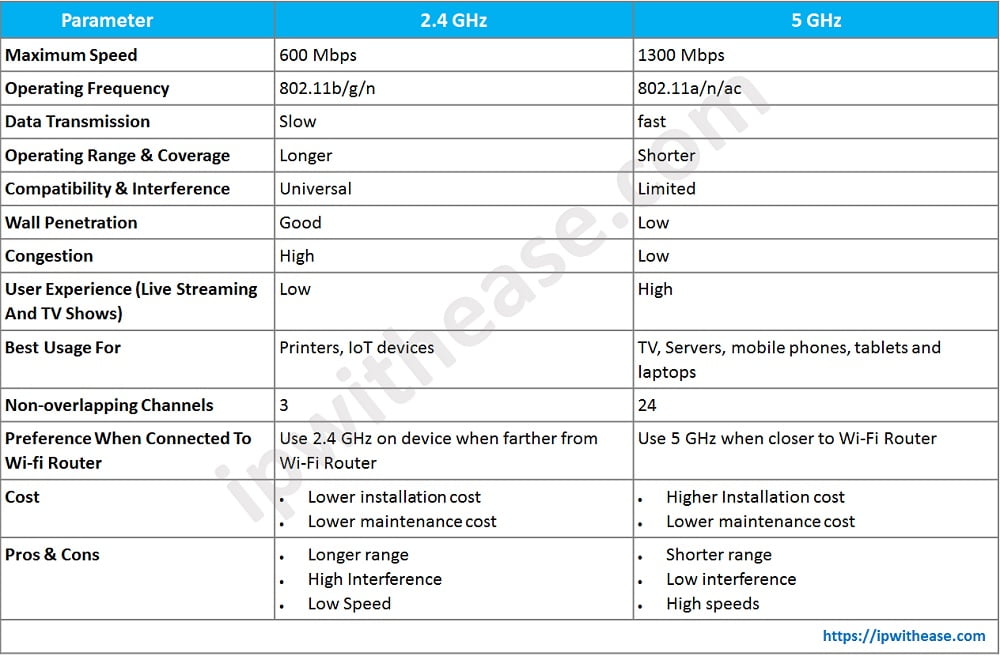
Your Shark vacuum will not work properly without Wi-Fi, and there is one critical rule: only 2.4GHz networks are supported.
Why 5GHz Networks Fail
Modern routers broadcast two networks. Shark robots only work on the 2.4GHz band. Even if your password is identical, 5GHz simply will not connect.
How to Tell Which Network You Have
Check your router label or app for the network names. One usually ends in “5G” or “5GHz.” That is the one to avoid.
| Network Name Example | Frequency | Compatible? |
|---|---|---|
fios-cq7v7 |
2.4GHz | ✅ Yes |
fios-cq7v7 5g |
5GHz | ❌ No |
Steps to Reconnect After a Reset
- Open the Shark Ion App
- Put your phone on the 2.4GHz network
- Follow the in-app setup to pair the vacuum
- Stay close to the router during pairing
📶 Signal Tip: Even when the vacuum is near the modem, try moving it a few feet. Metal objects and thick walls can weaken 2.4GHz signals.
If the app cannot find the vacuum, forget the network on your phone and reconnect fresh.
Update Firmware to Stop Persistent Glitches
Sometimes the problem is not your hardware. It is outdated software causing random shutdowns, mapping errors, or “reboot me” loops.
How to Update Shark Firmware
- Open the SharkClean app
- Select your vacuum from the device list
- Tap Settings, then Firmware Update
- Download and install any available update
- Keep the vacuum on the charger until the update finishes
⚖️ User Feedback: One owner fixed a reboot loop with an update. Another saw the issue return after a different update. Updates usually help but are not guaranteed.
Always charge the vacuum fully before updating to avoid file corruption.
Troubleshoot Common Shark Vacuum Errors
Not every issue needs a full reset. Here is how to diagnose frequent problems fast.
Fixing the “Reboot Me” Message
Common Causes:
– Low battery below 20%
– Firmware bug
– Hardware defect
– Loose or tilted dock connection
Quick Solutions:
– Fully charge the vacuum before each session
– Hold the power button for 10 seconds for a manual reset
– Tighten dock screws and confirm flat placement
– Contact Shark support if the message keeps returning
When the Vacuum Will Not Turn On
- Confirm the battery is charged
- Power cycle by unplugging the dock for 3 minutes
- Perform a manual hard reset
- Test the wall outlet with another device
If the vacuum still will not respond, the battery or mainboard may be faulty.
Fixing “Offline” Status in the App
- Verify both devices are on the 2.4GHz network
- Restart your router
- Move the vacuum closer to the router
- Reinstall the Shark Ion app
- Delete the old device profile and re-pair from scratch
Model-Specific Reset Reference
Reset steps vary slightly depending on your model. Here is what works for the most popular units.
Shark RV750 Reset Options
- Full app-based factory reset through Shark Ion
- Manual hard reset using the side power button (hold 10 seconds)
- Requires 2.4GHz Wi-Fi for app functions
Shark AI Ultra Reset Options
- No dedicated app reset on some firmware versions
- Manual reset by holding the power button until lights flash
- Firmware updates through SharkClean app fix the “reboot me” bug in many cases
🔍 Note: Button placement and exact behavior can vary by sub-model. Check your user manual if anything feels different.
What Happens After a Factory Reset?
Knowing what you lose helps you prepare for the reconfiguration process.
Data Erased by the Reset
- All saved Wi-Fi network credentials
- Custom cleaning schedules
- Room mapping and zone preferences
- User-personalized settings
Post-Reset Setup Checklist
- Reconnect to your 2.4GHz Wi-Fi network
- Install any pending firmware updates
- Run a full mapping cycle
- Create new cleaning schedules
- Test basic app commands
✅ Time Estimate: Full reconfiguration takes 15 to 30 minutes.
Do not skip firmware updates after a reset, or you may reintroduce bugs that were already patched.
When a Reset Does Not Fix the Problem
If you have tried every reset and the issue persists, look beyond software.
Check for a Failing Battery
Warning Signs:
– Vacuum dies shortly after a full charge
– Shuts off unexpectedly mid-cleaning
– Will not hold charge overnight
Contact Shark support about a battery replacement or unit exchange.
Hardware Defects on Some Models
Several Shark AI Ultra owners have reported recurring reboots caused by manufacturing defects. If multiple resets fail and updates do not help, your unit may be eligible for a free replacement under warranty.
Router Conflicts with Mesh Networks
Some mesh systems hide the 2.4GHz SSID or merge both bands. To work around this:
– Temporarily disable the 5GHz band
– Create a dedicated 2.4GHz guest network
– Use an older router just for pairing
The Complete Reset Workflow (Start to Finish)
Follow this sequence to fix most Shark vacuum problems without losing data unnecessarily.
- Check the battery and charge above 20%
- Power cycle by unplugging the dock for 3 minutes
- Manual reset by holding the power button 10 seconds, waiting 10 seconds, then restarting
- Verify Wi-Fi is on the 2.4GHz band
- Update firmware through the SharkClean app
- Factory reset via app only if Wi-Fi problems continue
- Reconfigure Wi-Fi, mapping, and schedules
- Contact Shark support if errors keep coming back
🔄 Why This Order Matters: It solves most issues without wiping your data, and reserves the full factory reset as a last step.
Prevent Future Issues With These Habits
A few simple routines keep your Shark vacuum running smoothly for years.
Monthly Maintenance Checklist
- Reboot manually once a month (10-second power button hold)
- Clean charging contacts weekly
- Check for firmware updates every 3 months
- Store the vacuum on a flat, hard surface
Best Practices for Long-Term Reliability
- Always charge on a level surface
- Avoid leaving the vacuum unplugged for long stretches
- Keep the vacuum out of extreme heat or cold
- Keep the app updated and logged in
💡 Pro Tip: Schedule a “system refresh” every 3 months, which is a power cycle plus a manual reset, to prevent slow software buildup.
Contact Shark Customer Support
When resets do not solve the problem, professional help is one call away.
Shark Support Contact Details
- Phone: 1-800-798-7398 (United States)
- Website: sharkclean.com/support
- Live chat and email are also available on the official site
Have your model number and purchase date ready. Most Shark robots include a 1-year warranty, and defective units often qualify for free replacements.
Frequently Asked Questions About Resetting a Shark Vacuum
Why does my Shark vacuum keep saying “reboot me”?
Common causes include firmware glitches, a battery below 20%, loose charging dock screws, a tilted charging position, or a hardware defect. Try a manual reset and a firmware update first.
Will a factory reset delete my cleaning schedule?
Yes. An app-based factory reset erases all custom schedules, room maps, and user preferences. You will need to set everything up again from scratch.
Can I connect my Shark vacuum to a 5GHz Wi-Fi network?
No. Shark robot vacuums only support 2.4GHz networks. Connecting to 5GHz will fail no matter what password you use.
How long do I hold the power button for a manual reset?
Hold the power button for about 10 seconds until the vacuum powers off or the lights flash. Wait 10 more seconds before turning it back on.
What if my Shark vacuum still has problems after a reset?
Check for firmware updates, confirm the battery is fully charged, inspect the charging dock for loose screws, and contact Shark support if the issue continues.
Do all Shark models reset the same way?
No. The RV750 supports both app and manual resets, while the AI Ultra relies on a manual power button hold and firmware updates. Always check your model’s manual for exact steps.
Key Takeaways for Resetting Your Shark Vacuum
Resetting a Shark vacuum does not need to be complicated. Start with the simplest fix, a power cycle, and only escalate to a manual reset, firmware update, or full factory reset if needed. Always confirm you are using a 2.4GHz Wi-Fi network, since 5GHz will never work with Shark robots. Keep the firmware updated and the charging contacts clean to prevent most glitches from returning.
Your next step: Pick the reset method that matches your problem and try it now. If the issue persists after all four methods, reach out to Shark support at 1-800-798-7398 with your model number ready.