You just unboxed your new Shark robot vacuum, and that box of automated convenience is sitting in your living room. Setting it up correctly is the first step to unlocking smart navigation, powerful suction, and self-emptying features that will save you hours each week. Whether you own a Shark AI Ultra, Shark IQ, or another model in the lineup, the setup process is quick, intuitive, and beginner-friendly.
This guide walks you through every step of setting up your Shark robot vacuum with precision. You will learn how to charge it properly, install the base station, connect to Wi-Fi, use the SharkClean app, and run your first automatic cleaning cycle. We will also cover pro tips to avoid common setup mistakes and ensure seamless daily operation from day one.
Unbox and Inspect Every Component
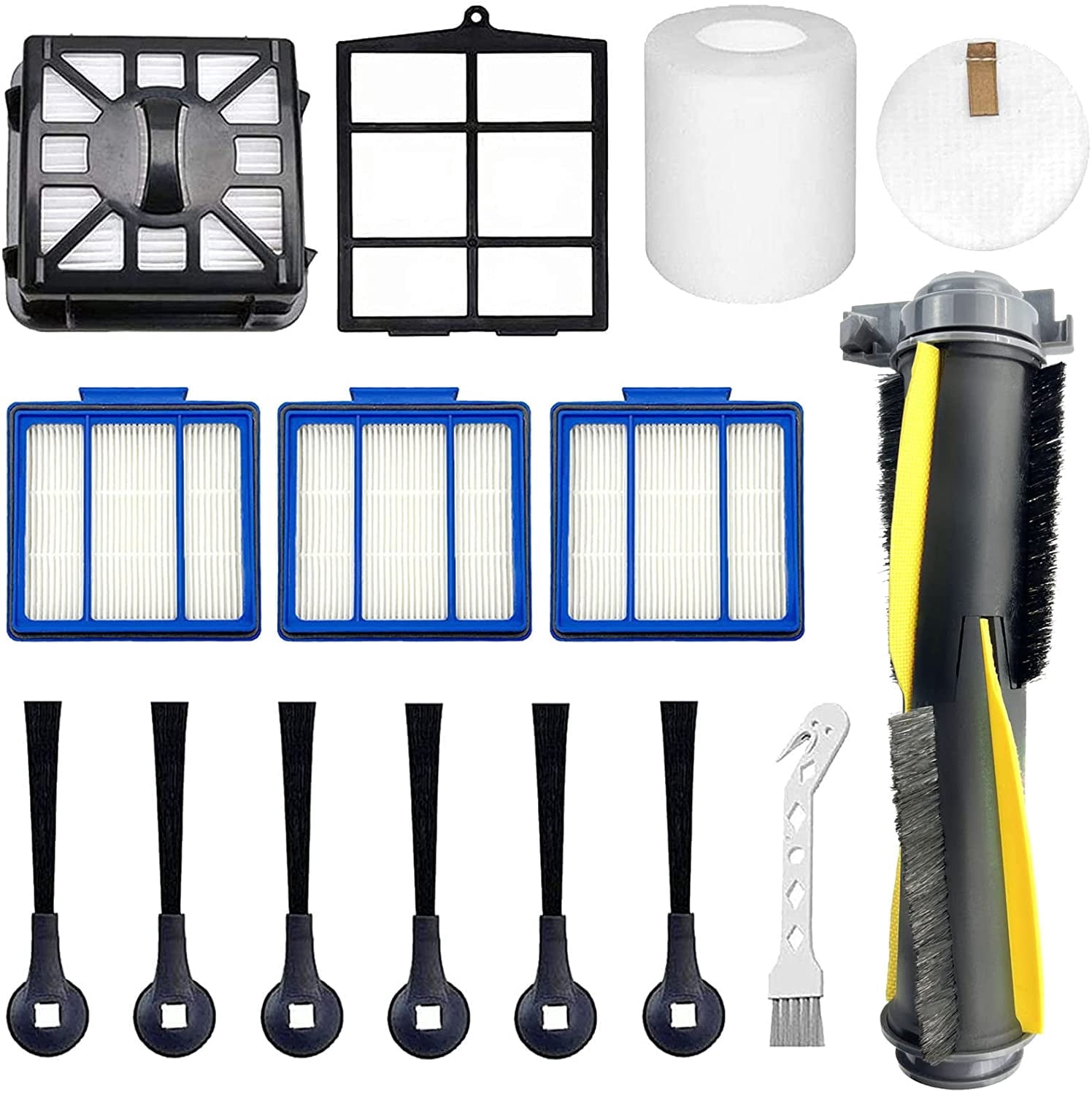
Before powering on your robot, make sure all parts are present and undamaged.
Check Included Accessories
Your Shark robot vacuum box should include the following items:
– The robot vacuum unit
– Charging base (docking station)
– Power adapter and cord
– Side brush (usually pre-installed)
– Filter (pre-installed in most models)
– Quick start guide
Verify each item is present. If anything is missing or damaged, contact Shark customer support before proceeding further.
Remove All Protective Tapes
New Shark robots come with protective tapes on sensors, wheels, and bumpers. Carefully peel off all plastic films, especially:
– The tape over the cliff sensors located on the underside
– Coverings on the charging contacts
– Film on the top control panel or display
Leaving these on can interfere with navigation accuracy and prevent proper charging.
Position the Charging Base Correctly

Proper dock placement ensures reliable returns and consistent performance.
Choose the Ideal Location
Place the charging base against a flat wall with at least 1.5 feet of clearance on both sides. Keep it away from stairs, rugs, or cords that could block the robot. Avoid direct sunlight or high-humidity areas like bathrooms. Always place it on a hard floor surface rather than carpet for stable alignment.
Tight corners and narrow hallways should be avoided since the robot might get stuck during docking.
Secure the Power Connection
Plug the power adapter into the docking station and connect it to a wall outlet. Do not use extension cords or power strips, as they may cause voltage drops.
Once powered, the dock indicator light should glow steadily (color varies by model, usually blue or white). This confirms it is ready to receive the robot after cleaning.
Charge the Robot Fully Before First Use
Always start with a full battery to support complete home mapping.
Initial Charge Duration
Place the robot manually onto the dock until it clicks into position. Allow it to charge for at least 3 to 4 hours, even if the battery indicator shows a partial charge quickly.
Shark robots perform system checks and calibration during the first charge, which requires full power to complete.
Confirm Charging Status
Look for visual cues that confirm a successful connection:
– A pulsing or solid light on the robot display (orange for charging, green when full)
– An audible tone when properly docked
– An app notification if already connected via Wi-Fi
If no lights appear, reseat the robot on the dock and check all power connections.
Download and Configure the SharkClean App
The SharkClean app unlocks scheduling, mapping, and remote control features.
Install the App and Create Your Account
- Search “SharkClean” in the App Store for iOS or Google Play for Android
- Download and open the app
- Tap Create Account using your email address
- Follow the prompts to verify your identity
Use a strong password and enable two-factor authentication if available.
Pair the Robot to the App
- Turn on Bluetooth and Wi-Fi on your phone
- Power on the robot by pressing the Clean button
- In the app, tap Add Device
- Select your Shark robot model from the list
- Follow voice or on-screen instructions to complete pairing
The app will guide you through Wi-Fi selection. Choose your 2.4 GHz network, as Shark robots do not support 5 GHz connections.
Pro Tip: Double-check your Wi-Fi password before entering it. A failed connection here is the most common setup issue users face.
Run Your First Clean and Map Your Home
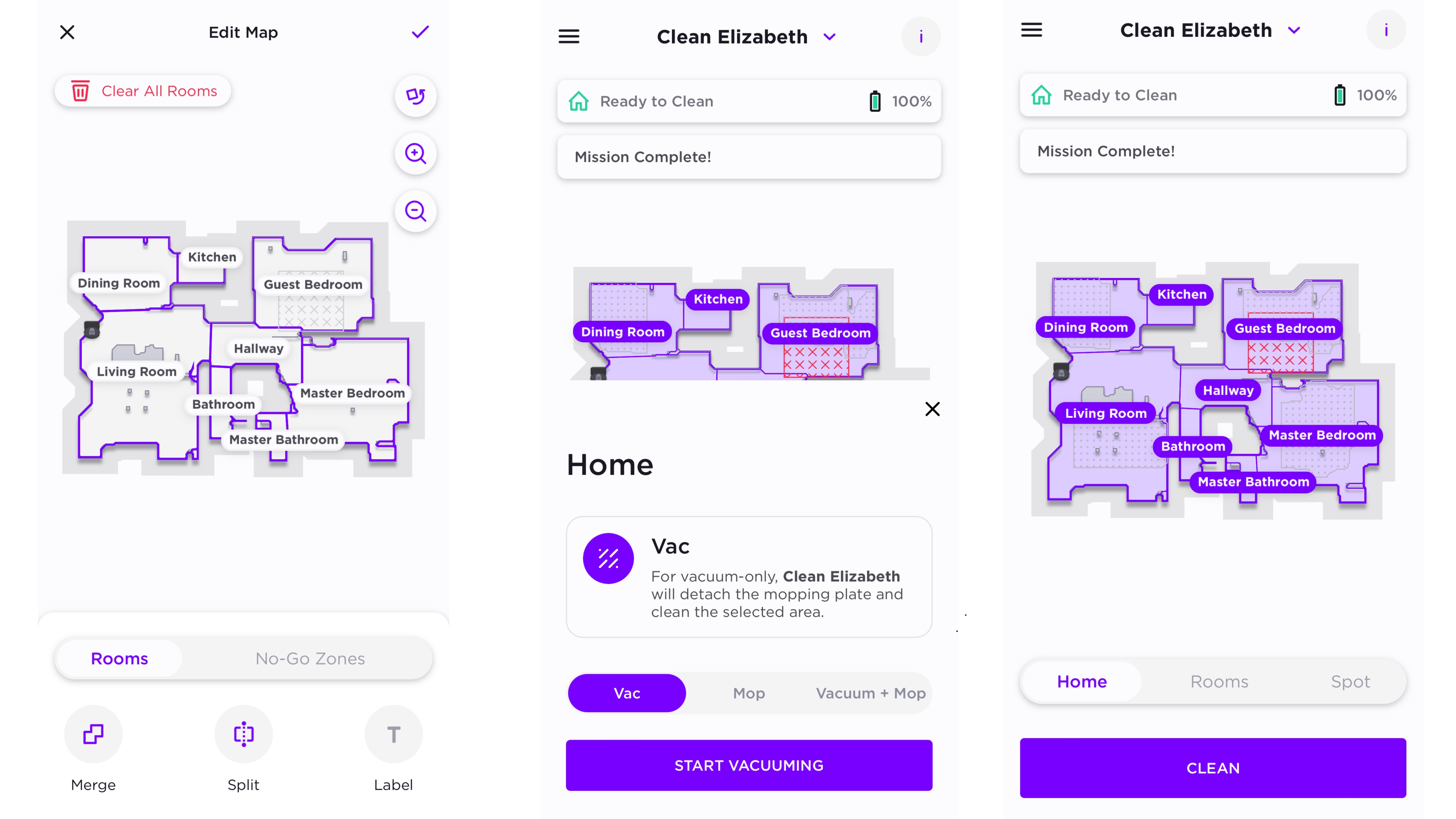
Your Shark robot builds a digital map during its initial cleaning cycle.
Prepare Your Space for Mapping
Before starting the cycle:
– Pick up small objects like toys, shoes, and cords
– Close bedroom or pet room doors if you do not want them cleaned yet
– Ensure curtains are not dragging on the floor
– Lift loose rugs that might shift or tangle in the brush
This preparation prevents errors and helps the robot navigate smoothly.
Start the Mapping Cycle
In the SharkClean app:
1. Tap Start Cleaning
2. Choose Auto Clean mode
3. Confirm the robot leaves the dock and begins scanning
The robot will use LiDAR or camera-based navigation (depending on your model) to scan walls and furniture. It creates a real-time map in the app and avoids obstacles using anti-collision sensors.
Let it run uninterrupted until it automatically returns to the dock.
Save and Customize the Map
Once the cycle finishes:
– Open the Map tab in the app
– Tap Save Map to store the layout
– Name rooms such as Living Room, Kitchen, or Bedroom
– Set no-go zones or cleaning boundaries if desired
Saved maps allow for room-specific cleaning later.
Customize Cleaning Settings for Your Home
Tailor performance to match your flooring and lifestyle.
Schedule Daily Automatic Cleans
In the app:
1. Go to Schedule
2. Tap Add Schedule
3. Select days and time (for example, 10:00 AM daily)
4. Choose cleaning mode such as Auto, Deep, or Quiet
The robot will automatically start at the scheduled time, provided it is fully charged and docked.
Adjust Suction Power Levels
Choose the right mode for different surfaces:
– Eco or Auto: Best for daily maintenance on hard floors
– Boost or Max: For deep-cleaning carpets or pet hair
– Quiet: For nighttime or quiet hours
Set your default suction level in Settings under Cleaning Preferences.
Perform Essential Post-Setup Maintenance
Keep your robot running efficiently from the very first day.
Clean the Filter and Brush Roll
After the first clean:
1. Remove the dustbin from the robot
2. Take out the filter and tap it gently to release dust
3. Rinse the filter under water (if washable according to your model specs), then air dry for 24 hours
4. Use scissors or the included cleaning tool to remove hair from the brush roll
A clogged filter reduces suction power and can trigger error messages.
Update the Firmware
Shark releases updates to improve navigation and overall performance.
Check for available updates:
1. Open the SharkClean app
2. Tap Settings, then Device Info, then Check for Updates
3. If an update is available, follow the prompts to install it
Keep the robot docked and powered during the update process. Do not interrupt the installation.
Troubleshoot Common Setup Issues
Fix problems before they become recurring frustrations.
Robot Will Not Charge
Check the following:
– The power outlet is working (test with another device)
– Charging contacts on the robot and dock are clean (wipe with a dry cloth)
– The robot is aligned straight on the dock
If the robot remains unresponsive, try a soft reset.
Wi-Fi Connection Fails
Ensure these conditions are met:
– You are connected to a 2.4 GHz network
– The Wi-Fi password is correct
– Your router is not blocking unknown devices
Restart your router and try pairing again. If needed, forget the network and reconnect from scratch.
Mapping Fails or Stops Early
Common causes include:
– Low light conditions for models using visual navigation
– Excessive clutter on the floor
– Mirrors or glass tables confusing the sensors
Reattempt mapping during daylight hours with a clear path. Use physical barriers to block reflective surfaces temporarily.
Reset and Re-pair Your Robot When Needed
Use reset functions only if the robot becomes unresponsive.
Soft Reset Procedure
- Press and hold the Clean and Home buttons for 10 seconds
- Wait for the light ring to pulse red, then release
- Reboot the robot and retry the setup process
This clears temporary glitches without erasing saved maps.
Factory Reset
Only use this if you are selling or gifting the robot:
1. In the SharkClean app, go to Settings and tap Remove Device
2. Confirm deletion
3. On the robot, hold Clean, Spot, and Home for 15 seconds until lights flash
This erases all data, including maps and Wi-Fi credentials.
Frequently Asked Questions About Setting Up a Shark Robot Vacuum
How long does it take to set up a Shark robot vacuum?
Most Shark robot vacuums can be fully set up in under 30 minutes. The longest step is the initial charge, which takes 3 to 4 hours. App pairing and first mapping typically take 10 to 15 minutes combined.
Do Shark robot vacuums work with 5 GHz Wi-Fi?
No, Shark robot vacuums only support 2.4 GHz Wi-Fi networks. If your router broadcasts both 2.4 GHz and 5 GHz, make sure you connect the robot to the 2.4 GHz band during setup.
Where should I place the Shark robot charging base?
Place the dock against a flat wall with at least 1.5 feet of clearance on both sides. Keep it on a hard floor surface, away from stairs, direct sunlight, and high-humidity areas. This ensures reliable docking and prevents navigation errors.
Can I use the Shark robot vacuum without the app?
Yes, you can press the Clean button on the robot to start a basic cleaning cycle without the app. However, you will miss out on scheduling, mapping, room-specific cleaning, and suction customization features.
Why is my Shark robot not connecting to Wi-Fi?
Common causes include entering the wrong password, attempting to connect to a 5 GHz network, or router settings blocking new devices. Restart your router, confirm you are using 2.4 GHz, and re-enter your password carefully.
How do I know if my Shark robot is fully charged?
A solid green light on the robot display typically indicates a full charge, while an orange or pulsing light means it is still charging. The SharkClean app also displays real-time battery status once paired.
Key Takeaways for Your Shark Robot Vacuum Setup
Setting up your Shark robot vacuum properly lays the foundation for years of reliable, automated cleaning. Correct dock placement, a full initial charge, and successful app integration are the three most important steps. Each one ensures your robot performs at its best from the very first run.
Now that your robot is configured, clean the filter weekly, empty the dustbin after each run, and inspect the brush roll monthly. Run a quick mapping session once your space is clear, and save the layout in the app. With regular care and these setup habits in place, your Shark robot will keep your floors spotless with minimal effort on your part.