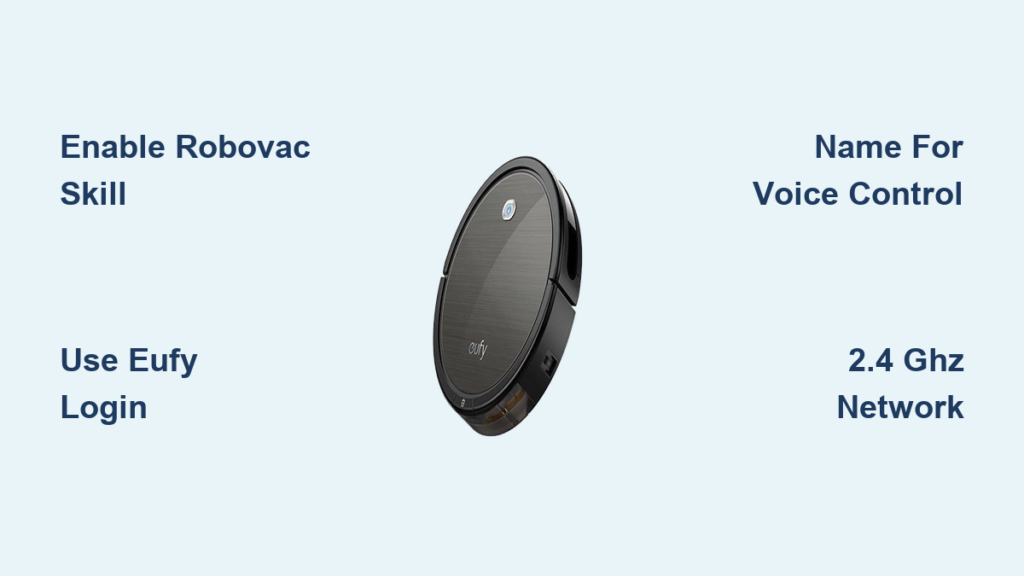
Your Eufy RoboVac sits ready on its dock, but Alexa ignores every command you give. The most common reason? You enabled the wrong skill during setup. Two Eufy skills exist in the Alexa app, and only one works with robot vacuums. This creates confusion that leaves many users stuck before they even begin. This guide walks you through the exact process to connect your Eufy vacuum to Alexa, choose the correct skill, name your device for flawless voice control, and fix any errors that pop up along the way. By the end, you will start, pause, and dock your RoboVac using only your voice.
Enable the eufyHome – RoboVac Skill in Alexa
Choose the Correct Skill to Avoid Setup Failure
The Alexa Skills store lists two skills when you search “eufyHome.” The standard eufyHome skill controls smart bulbs and plugs only. The eufyHome – RoboVac skill is built specifically for robot vacuums. Enabling the wrong one means Alexa will never see your vacuum, no matter how many times you try to discover it.
Open the Alexa app and tap the menu icon (three horizontal lines) in the top corner. Select Skills & Games and type “eufyHome” into the search bar. Two results appear. Tap eufyHome – RoboVac, which is labeled for RoboVac users.
Log In With Your Eufy Account
After tapping the correct skill, hit Enable to Use. A login screen appears asking for credentials. Enter your eufyHome app email and password, not your Amazon login. This step connects your Eufy cloud account to Alexa.
Once authenticated, you see a confirmation screen. No device discovery step exists for RoboVacs. Your vacuum appears automatically in Alexa the moment the skill is enabled and linked.
Name Your RoboVac for Reliable Voice Control

Apply Voice-Friendly Naming Rules
Alexa needs a clear, simple name to recognize your vacuum. Open the eufyHome app, select your RoboVac, tap Device Settings, then choose Device Name. Pick a name that is easy to pronounce in English, with no emojis or special characters.
Names like “Living Room Vac” or “Upstairs Cleaner” work well. Avoid names like “Vac_1!” or “RoboVac 🧹” because Alexa often mispronounces symbols and non-English words. If you own multiple RoboVacs, give each one a unique, distinct name so Alexa can tell them apart.
Sync the New Name With Alexa
Renaming your vacuum in the eufyHome app does not update Alexa automatically. You must trigger a fresh device scan. In the Alexa app, go to Devices, tap All Devices, hit the “+” icon, choose Add Device, and select RoboVac.
Alexa scans and updates your vacuum’s voice profile with the new name. Skip this step, and Alexa keeps using the old name, leading to ignored commands or errors like “I couldn’t find a device named that.”
Speak the Right Voice Commands

Start, Pause, and Send Your Vacuum Home
Once the skill is enabled and your RoboVac is named, voice control works immediately. Use these commands:
- “Alexa, start cleaning with [robot name].”
- “Alexa, pause [robot name].”
- “Alexa, return [robot name] to the charging dock.”
Say “Alexa, start cleaning with Living Room Vac,” and your RoboVac begins its cycle. There is no need to say “turn on” or “activate.” Alexa recognizes “start cleaning” as the primary command for vacuums.
Clean Specific Rooms on Supported Models
Some Eufy models with mapping, such as the X8 and G30, support room-specific cleaning through Alexa. If your vacuum has saved maps in the eufyHome app, try these commands:
- “Alexa, clean the kitchen with [robot name].”
- “Alexa, clean the bedroom with [robot name].”
If Alexa responds with “I can’t do that,” your model likely does not support zone-based voice control. Check the eufyHome app to confirm whether room labels exist.
Fix the Most Common Connection Problems
Alexa Cannot Find Your RoboVac
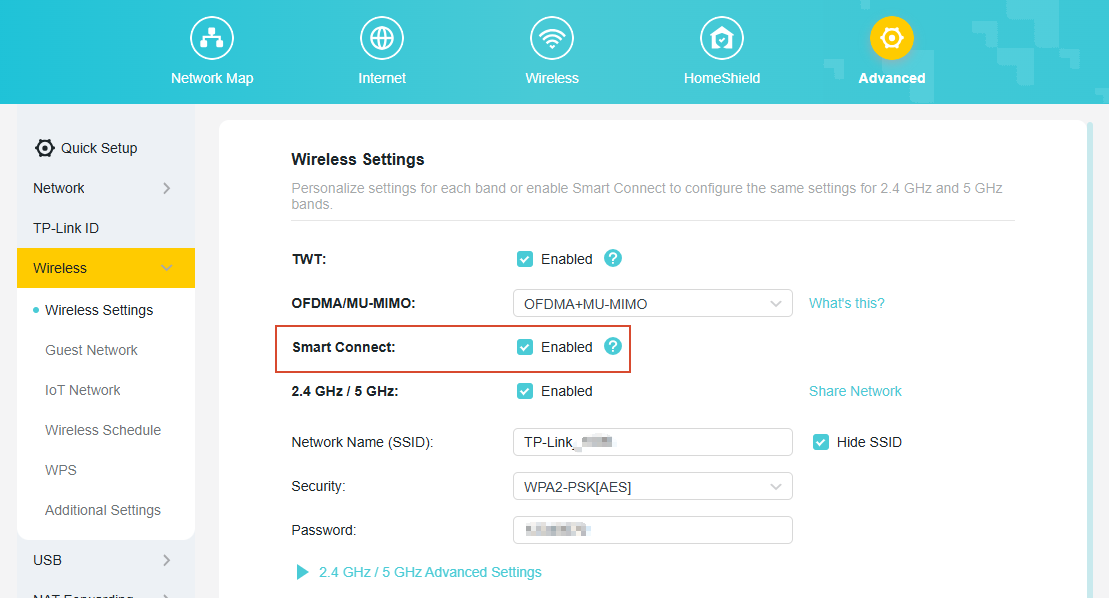
When Alexa says it cannot discover your vacuum, the Wi-Fi network is usually the culprit. Both your Eufy vacuum and Alexa device must run on the same 2.4 GHz Wi-Fi network. Eufy RoboVacs do not support 5 GHz connections.
If your router uses band steering, disable it or create a dedicated 2.4 GHz network. Next, reboot your RoboVac. Unplug it from the charger for 10 seconds, then plug it back in. Wait about 30 seconds for a full boot, then try voice commands again.
Your Vacuum Shows as Offline
An “offline” status means Alexa lost contact with your device. Confirm the vacuum is powered on and within Wi-Fi range. Then verify your router has working internet. Load a website on your phone to check.
If the router is online but the vacuum stays offline, re-login to the skill. In the Alexa app, go to Skills & Games, then Your Skills, select eufyHome – RoboVac, and tap Settings. Disable the skill, then re-enable it and log in again with your eufyHome credentials.
Alexa Hears You but Won’t Control the Vacuum
Start by checking the skill name. Many users enable eufyHome by accident instead of eufyHome – RoboVac. Disable the wrong skill and enable the correct one.
Also confirm your eufyHome app is updated to the latest version. An expired session or outdated app can break the connection. Finally, check the vacuum itself. Low battery, a full dustbin, or a stuck wheel can put the vacuum in an error state that Alexa cannot override.
Avoid the Setup Mistakes That Break Most Connections
Never Select the Wrong Eufy Skill
The single biggest setup failure is choosing eufyHome instead of eufyHome – RoboVac. They look nearly identical in the Alexa app, but they control different device categories. Read the skill description before enabling. It should say “Control your Eufy RoboVac with Amazon Alexa.”
Always Use Your Eufy Login, Not Amazon Credentials
When Alexa asks for login details during skill setup, enter your eufyHome account email and password. Using your Amazon credentials will fail silently or trigger an error. If you forgot your eufy password, reset it through the eufyHome app or visit eufy.com.
Skip Device Discovery for RoboVacs
Unlike smart bulbs and plugs, RoboVacs do not require device discovery. The moment you log in to the skill, your vacuum is ready for voice control. If you tap “Discover Devices” and nothing appears, do not panic. This is normal behavior.
Running discovery repeatedly will not help and may cause sync delays. If your vacuum does not respond, check your voice command format or re-enable the skill.
Set Up Multiple RoboVacs the Right Way
Give Every Vacuum a Unique Name
Smart homes with more than one RoboVac need clear naming. Use simple, distinct names like “Downstairs Vac” and “Upstairs Vac.” Avoid similar names such as “Vac 1” and “Vac 2,” which often confuse Alexa.
After naming each unit in the eufyHome app, re-discover devices in the Alexa app to sync both. Then use commands like:
- “Alexa, start cleaning with Downstairs Vac.”
- “Alexa, return Upstairs Vac to the dock.”
Alexa treats each vacuum as a separate device, so naming accuracy is critical.
Keep Every Device on the Same Network
All Eufy devices and Alexa speakers must share the same home Wi-Fi network. A vacuum connected to a guest network will not respond to Alexa commands. If you use mesh routers, make sure roaming is seamless between nodes.
Place your router centrally and avoid thick walls between the dock and the router. A strong, stable signal prevents disconnections and keeps voice commands reliable.
Frequently Asked Questions About Connecting Eufy Vacuum to Alexa
Why won’t Alexa discover my Eufy RoboVac?
RoboVacs do not need device discovery. Once you enable the eufyHome – RoboVac skill and log in, your vacuum is ready for voice control. If discovery fails, you likely enabled the wrong skill or your vacuum is offline.
What is the difference between eufyHome and eufyHome – RoboVac?
The eufyHome skill works only with Eufy smart bulbs and plugs. The eufyHome – RoboVac skill works only with robot vacuums. Enabling the wrong one prevents Alexa from controlling your device.
Can I use Alexa to clean a specific room with my Eufy vacuum?
Yes, but only on models that support mapping, such as the X8 and G30. Your vacuum must have saved room labels in the eufyHome app. Say “Alexa, clean the kitchen with [robot name]” to test this feature.
Do I need a 2.4 GHz or 5 GHz Wi-Fi network?
Eufy RoboVacs only support 2.4 GHz Wi-Fi. If your router combines both bands through band steering, disable that feature or create a separate 2.4 GHz network for your smart home devices.
How do I contact Eufy support if Alexa still won’t connect?
Call eufy Clean support at +1 (800) 994-3056 for fast assistance with vacuum-related issues. Live chat is also available 24/7 on the eufy website.
Key Takeaways for Connecting Eufy Vacuum to Alexa
Connecting your Eufy vacuum to Alexa takes less than 5 minutes when you follow the right steps. Enable the eufyHome – RoboVac skill, not the standard eufyHome skill, and log in with your Eufy account credentials. Name your vacuum using simple, English-friendly words without emojis or special characters. Remember that RoboVacs skip device discovery entirely, so your vacuum is ready the moment you log in. For long-term reliability, keep the eufyHome app updated, maintain a stable 2.4 GHz Wi-Fi connection, and re-discover devices in Alexa whenever you rename your vacuum. With these steps complete, your RoboVac responds to every voice command, making your smart home truly hands-free.