Is your Eufy vacuum acting up, stuck in a loop, failing to connect to Wi-Fi, or unresponsive to commands? A reset can often resolve these issues quickly and restore smooth operation. Whether you are troubleshooting navigation problems, app connectivity errors, or unexpected behavior, knowing how to reset Eufy vacuum models is a crucial skill every owner should master.
This guide walks you through multiple reset methods depending on your model, explains when to use each one, and helps you avoid common mistakes. No tech skills needed, just clear, actionable steps to get your robot back on track.
When to Reset Your Eufy Vacuum
Resetting your Eufy vacuum is not just for emergencies. It can also serve as a preventive step after software updates or when moving to a new home. Recognizing the right moment ensures you do not overlook deeper issues or reset unnecessarily.
Signs You Need a Reset
- Vacuum fails to start or respond to buttons
- App shows “Offline” or will not connect
- Robot gets stuck in a reboot loop
- Cleaning schedules stop working
- Wi-Fi pairing attempts fail repeatedly
- Unusual beeping or error codes appear
A soft reset often clears temporary glitches. If problems persist, a factory reset may be required.
Soft Reset vs Factory Reset
A soft reset (reboot) clears temporary memory without erasing settings. Use this first for minor hiccups. A factory reset wipes all custom settings, including Wi-Fi, maps, and schedules, restoring the vacuum to out-of-the-box state. Reserve this for persistent issues or before selling or gifting the device.
Soft Reset: Reboot Your Eufy Vacuum
This method is quick, safe, and should be your first troubleshooting step. It works like restarting a smartphone, with no data loss and just a fresh start.
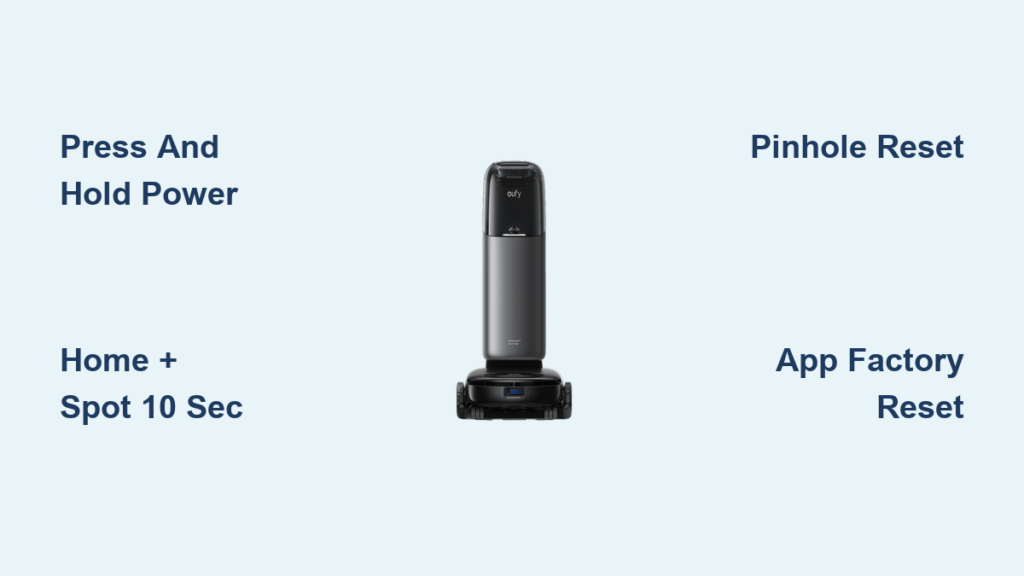
Press and Hold Power Button
- Ensure the vacuum is powered on and docked.
- Locate the power button (usually on top, near the display or central button).
- Press and hold it for 10 to 15 seconds until the light turns off.
- Wait 5 seconds, then press the button again to power it back on.
You will typically see lights flash or hear a startup chime. The vacuum will reconnect to Wi-Fi automatically if previously paired.
Check for Response
After rebooting:
– Open the eufyClean app and confirm device status.
– Try starting a cleaning cycle manually.
– Verify if error messages disappear.
If the vacuum still will not respond, proceed to a factory reset.
Factory Reset: Restore to Default Settings
A factory reset clears all saved data. Only use this if a soft reset fails or you are preparing the unit for a new user.
Use the Reset Button Method (Most Models)
Many Eufy vacuums have a dedicated reset function triggered via button combinations.
Press Home and Spot for 10 Seconds
- Turn on the vacuum if possible.
- Press and hold both the Home and Spot buttons simultaneously.
- Keep holding for 10 to 15 seconds until lights flash rapidly (usually blue or white).
- Release the buttons. The vacuum will power down and restart.
Once rebooted, it will enter setup mode, prompting you to reconnect to Wi-Fi and reconfigure in the app.
Models Requiring Pinhole Reset
Some older or specific models, such as the Eufy RoboVac 11S and 15C, lack physical Home and Spot buttons and require a pinhole reset.
Insert Paperclip into Reset Hole
- Turn the vacuum upside down.
- Locate the small reset hole near the charging contacts or wheels.
- Straighten a paperclip and gently insert it into the hole.
- Press and hold the internal button for 10 seconds.
- Remove the clip. The vacuum will restart with factory settings.
Check your model’s manual in the eufy app or support site if unsure.
Reset Via the eufyClean App
If your vacuum is still connected to the app, you can initiate a reset remotely, which is ideal for software-related issues.
Navigate to Device Settings
- Open the eufyClean app on your smartphone.
- Tap your vacuum’s name on the home screen.
- Go to Settings (gear icon).
- Scroll to Factory Reset or Restore Default Settings.
Confirm and Restart
- Tap Reset and confirm the action.
- The app will send the command to your vacuum.
- Wait 1 to 2 minutes for the process to complete.
- The vacuum will restart and appear as “Offline” or “Not Connected.”
You will need to re-add it to the app like a new device.
After Reset: Reconnect and Reconfigure
Once reset, your Eufy vacuum behaves like a brand-new unit. Follow these steps to restore full functionality.
Reconnect to Wi-Fi
- Ensure your phone is on the same 2.4 GHz Wi-Fi network, since Eufy does not support 5 GHz.
- Open eufyClean app and tap Add Device.
- Follow prompts to pair the vacuum.
- Wait for successful connection. A blue solid light usually indicates ready.
Avoid using guest networks or firewalled connections, as they can block pairing.
Remap Your Home
After a factory reset, the vacuum loses all saved maps.
– Start a full cleaning cycle to rebuild the floor plan.
– Keep doors open and obstacles clear for best mapping.
– Allow 2 to 3 cleaning runs for the map to stabilize.
You can later set no-go zones and room labels in the app.
Troubleshooting Common Reset Issues
Even after resetting, some problems may linger. Here is how to fix them.
Vacuum Will Not Power On After Reset
- Check charging dock: Ensure metal contacts are clean and aligned.
- Verify outlet: Test with another device.
- Charge for 24 hours: If the battery drained completely, it may take longer to respond.
If still dead, contact Eufy support.
App Says “Device Offline” Post-Reset
- Confirm Wi-Fi is 2.4 GHz and password is correct.
- Restart your router.
- Move the vacuum closer to the router during setup.
- Avoid network congestion caused by too many smart devices.
Try resetting the app connection if needed.
Reset Did Not Fix Navigation Errors
A reset clears software glitches but not hardware issues.
– Inspect wheels and brushes for debris.
– Clean sensors (bump, cliff, lidar) with a dry cloth.
– Ensure lighting is adequate, since dark rooms confuse navigation.
Persistent issues may require professional service.
Prevent Future Issues: Maintenance Tips
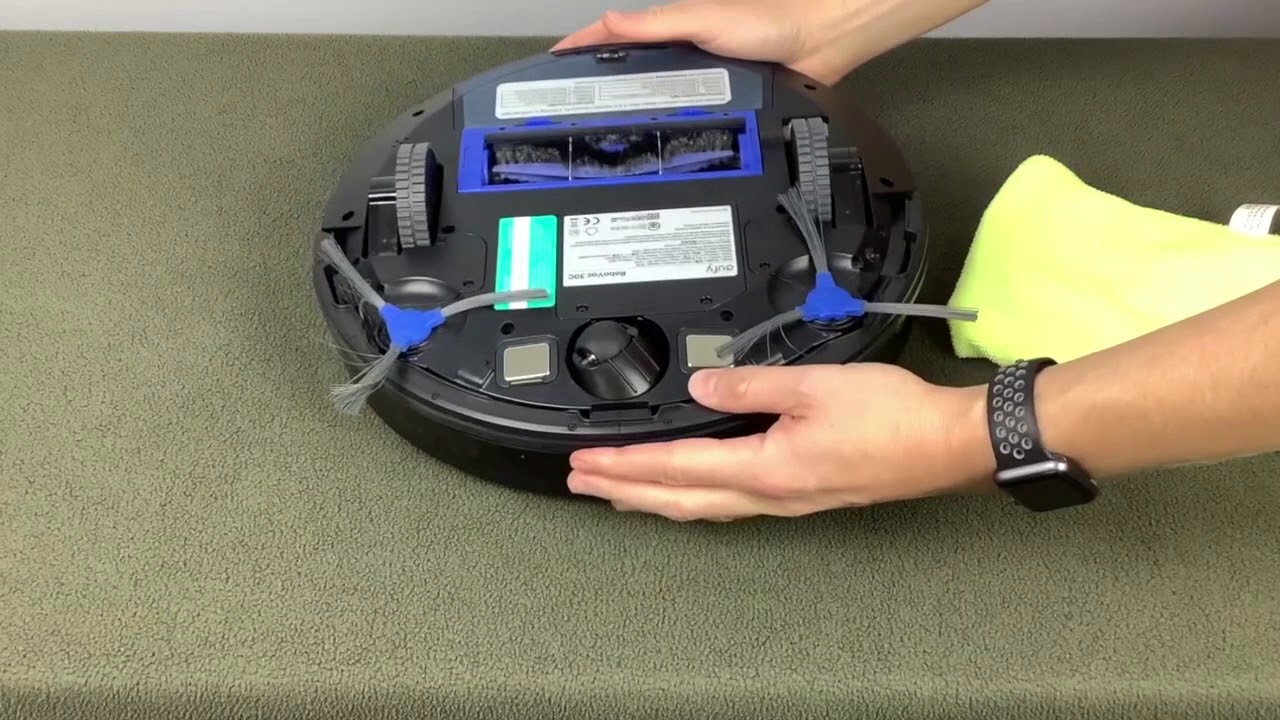
Keep your Eufy vacuum running smoothly with simple habits.
Schedule Monthly Reboots
Perform a soft reset once a month to clear memory and prevent lag. It takes under 30 seconds and can avoid bigger problems.
Update Firmware Regularly
Firmware updates often fix bugs and improve performance.
– Open eufyClean app.
– Go to Device Settings then Firmware Update.
– Install any available updates automatically.
Keep your app updated too.
Clean Sensors and Contacts
Dust and grime on sensors or charging contacts can mimic software failure.
– Wipe sensors weekly with a microfiber cloth.
– Clean charging pins on vacuum and dock monthly.
– Use isopropyl alcohol (70%) for stubborn residue.
This improves connectivity and charging reliability.
Contact Eufy Support If Needed
If all reset methods fail, your unit may have a hardware defect or need advanced diagnostics.
Reach Out via Phone or Chat
- eufy Clean Support (USA): +1 (800) 994-3056
- Email: support@eufy.com
- Live Chat: Available 24/7 on the eufy website
Have your model number and serial number ready, found on the bottom of the vacuum.
Check Warranty Status
Eufy offers a hassle-free warranty. If your vacuum is under warranty, you may qualify for free repair or replacement. Visit the Support Center to process a claim.
Frequently Asked Questions About Resetting a Eufy Vacuum
Will resetting my Eufy vacuum delete my maps?
Yes, a factory reset erases all saved maps, no-go zones, and cleaning schedules. A soft reset does not affect saved data.
How long does a factory reset take?
The process usually completes within 1 to 2 minutes. The vacuum will restart automatically once finished.
Why will not my Eufy vacuum connect to Wi-Fi after a reset?
Eufy vacuums only support 2.4 GHz networks. Make sure you are not using a 5 GHz band, guest network, or a router with firewall restrictions.
Do all Eufy vacuum models have a reset button?
Not all. Some models use button combinations like Home and Spot, while older models have a physical pinhole reset button on the bottom.
Can I reset my Eufy vacuum without the app?
Yes, using the physical button methods described above, you can perform both a soft reset and a factory reset without the app.
Key Takeaways for Resetting Your Eufy Vacuum
Resetting your Eufy vacuum is a simple yet powerful fix for most software hiccups. Start with a soft reset, try a factory reset if needed, and always reconnect properly afterward. With regular maintenance and timely resets, your robot can keep delivering clean floors for years.
If problems persist, Eufy’s lifetime support ensures you are never alone in troubleshooting. Your next step is to try the soft reset method right now and see if your vacuum responds.