You just unboxed your new Xiaomi robot vacuum, and it’s sitting there, sleek, silent, and maybe a little intimidating. You’ve heard how it can clean floors automatically, dodge furniture, and even map your entire home. But how do you actually use a Xiaomi robot vacuum without getting lost in buttons and apps?
The good news: setting up and using a Xiaomi robot vacuum is simple once you know the steps. Whether you own a Mi Home compatible model like the Xiaomi Robot Vacuum-Mop P or the Mi Robot Vacuum-Mop Pro, this guide walks you through everything from first charge to smart maps and voice control. No tech background needed.
Unbox and Place the Charging Dock
Start by checking that every accessory is in the box. Most Xiaomi robot vacuums ship with the robot unit, a charging dock, a power adapter, side brushes, a HEPA filter, a water tank for mopping models, and a user manual.
Find the Best Spot for the Dock
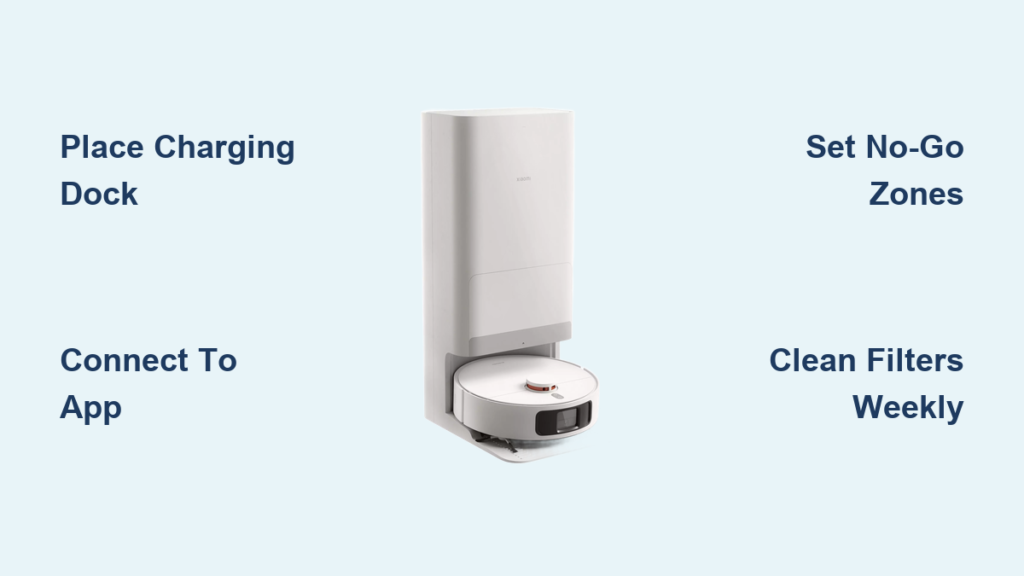
Place the charging dock flat against a wall with 1.5 to 3 feet of clear space on both sides and at least 3 feet in front. Avoid carpets, dark surfaces, and reflective glass because these can confuse the cliff and laser sensors. Plug in the dock and wait for the LED indicator to glow, confirming it has power.
Attach the Side Brush and HEPA Filter
Snap the side brush onto the small rotating arm underneath the robot. This brush sweeps dust from edges into the suction path. Then slide the HEPA filter into the dustbin until it clicks. The filter traps fine particles and allergens, so never run the robot without it installed.
Power On and Run the First Clean
Turn On the Robot
Press and hold the power button on top of the robot for about 3 seconds. A chime sounds, indicator lights turn on, and the robot runs a quick self-check that spins the brushes and calibrates the sensors.
Start an Auto Clean
Press the clean button once to launch Auto mode. The robot begins mapping the room, navigating around obstacles, and adjusting suction based on the floor type. Expect gentle bumps into furniture legs because the bumper sensor relies on light contact to learn the layout. When battery runs low or cleaning finishes, the robot automatically returns to the dock.
Connect to the Xiaomi Home App
Smart features, maps, and voice control all live inside the Xiaomi Home app, formerly called Mi Home.
Download and Sign In
- Install Xiaomi Home from the App Store or Google Play.
- Create a Xiaomi account or sign in to an existing one.
- Tap the plus icon to add a device.
- Select your model, for example Xiaomi Robot Vacuum-Mop P.
- Follow the on-screen prompts to begin pairing.
Pair the Robot with Wi-Fi
The robot only supports 2.4 GHz networks, so 5 GHz will not work. Put the robot into pairing mode by holding the reset or Wi-Fi button for around 5 seconds until a voice prompt confirms pairing. Enter your Wi-Fi password in the app, wait for the confirmation screen, and the robot reboots to finish the setup.
Explore Cleaning Modes and Scheduling
Pick a Cleaning Mode
Inside the app, tap clean and choose from these options:
- Auto Clean for full-room coverage
- Edge Clean for walls and corners
- Spot Clean for a 1.5 by 1.5 meter zone around the robot
- Manual Control to steer the robot like a remote car
- Mop Mode for combo models with a water tank
Schedule Daily Cleanings
Open the schedule tab, tap add schedule, pick the days and start time, then choose a cleaning mode and suction level. Save the schedule and the robot starts automatically, even when nobody is home.
Adjust Suction Power
Swipe through four suction levels to match the mess:
- Quiet around 600 Pa for light dust and low noise
- Standard between 1000 and 1500 Pa for everyday cleaning
- Strong around 2000 Pa for carpets and pet hair
- Max between 2200 and 2500 Pa for deep cleans, which drains battery faster
Set Up Smart Maps, No-Go Zones, and Rooms

After one or two full runs, the robot saves a map of your home.
View and Edit the Map
Open the map tab to see the layout, current robot position, and cleaning path. Pinch to zoom and drag to pan around rooms.
Draw No-Go Zones
Tap edit map, select no-go zone, then draw a rectangle around pet bowls, cables, or kids’ play areas. The robot will avoid these zones on every future run.
Clean Specific Rooms or Zones
Use zone clean to draw a rectangle over a specific area, pick suction power, and start a targeted session. Room clean lets you send the robot straight to a single labeled room for quick touch-ups.
Enable Voice Control with Alexa or Google Assistant
Hands-free control is a major perk of learning how to use a Xiaomi robot vacuum with smart speakers.
- In the Xiaomi Home app, open Smart Scene then Voice Assistant.
- Link Amazon Alexa or Google Home.
- Try commands like:
– “Alexa, tell Xiaomi to start cleaning.”
– “Hey Google, ask Xiaomi to stop vacuuming.”
Pause, resume, and dock commands also work through voice.
Keep Your Xiaomi Robot Vacuum in Top Shape
Empty the Dustbin After Each Run
Press the release button, pull out the dustbin, and empty it into the trash. Wipe the inside with a dry cloth so suction stays strong.
Clean the Main and Side Brushes Weekly
Turn the robot over, slide out the main roller, and cut away tangled hair with scissors. Rinse the brush with warm water if it is waterproof, dry it fully, then reinstall. Wipe the side brushes the same way.
Wash the HEPA Filter Monthly
Remove the filter, tap out loose dust, then rinse under running water without soap. Air dry for a full 24 hours because a damp filter can damage the motor. Replace the filter every 3 to 6 months.
Wipe Sensors and Charging Contacts
Dust the cliff sensors on the bottom, the bumper sensor on the front, and the metal charging contacts on the dock. A dry microfiber cloth works best. Clean sensors mean fewer navigation errors and better docking.
Fix Common Xiaomi Robot Vacuum Problems
Wi-Fi Connection Keeps Failing
Confirm the phone and robot use the same 2.4 GHz network. Restart the router, then reset the robot’s Wi-Fi by holding the reset button for 10 seconds before pairing again.
Robot Gets Stuck Often
Pick up cords, rugs, and small objects from the floor. Adjust lighting because very dim or very bright rooms can disrupt camera navigation. Check for firmware updates inside the app, since updates often fix navigation bugs.
Suction Feels Weak
Empty the dustbin, clean or replace the filter, and check the main inlet under the brush for blockages. Tangled hair around the roller also reduces airflow.
Robot Will Not Return to the Dock
Keep the area around the dock clear, wipe the charging contacts, and place the dock on a hard floor rather than carpet. Reboot the robot if the problem continues.
Extend Battery Life
A healthy Xiaomi robot vacuum delivers 1.5 to 2.5 hours of runtime per charge. To keep the battery strong:
- Use Standard mode for most cleanings
- Avoid back-to-back schedules
- Let the robot fully recharge before the next run
- Store the robot in a cool, dry spot away from direct sunlight
Expect battery capacity to decline after 2 to 3 years. Replace the battery when runtime drops below 60 minutes.
Frequently Asked Questions About Xiaomi Robot Vacuums
How do I connect my Xiaomi robot vacuum to Wi-Fi?
Download the Xiaomi Home app, add your model, and follow the pairing steps. Hold the Wi-Fi or reset button for 5 seconds until the robot announces pairing mode, then enter your 2.4 GHz Wi-Fi password.
Can I use a Xiaomi robot vacuum without the app?
Yes. Press the power and clean buttons on the robot to start an Auto clean and send it back to the dock. The app simply unlocks maps, schedules, and voice control.
How often should I clean the HEPA filter?
Rinse the filter every 2 to 4 weeks and let it air dry for 24 hours. Replace it every 3 to 6 months for the best suction and allergen capture.
Does the Xiaomi robot vacuum work with Alexa and Google Home?
Yes. Link the Xiaomi Home skill in Alexa or the Xiaomi service in Google Home, then start, stop, pause, or dock the robot with simple voice commands.
Why will my Xiaomi robot vacuum not return to the dock?
Clear 3 feet of space in front of the dock, wipe the charging contacts, and place the dock on a hard floor. Reboot the robot if it still fails to dock.
Final Takeaways for Using Your Xiaomi Robot Vacuum
Mastering how to use a Xiaomi robot vacuum comes down to three habits. First, set up the dock and Wi-Fi correctly so the robot always returns home and stays online. Second, lean on the Xiaomi Home app for maps, schedules, no-go zones, and voice control. Third, maintain the dustbin, brushes, filter, and sensors on a weekly and monthly schedule to keep suction strong and navigation accurate.
Start by completing the first full mapping run today, then explore the app features one by one. Within a week, your Xiaomi robot vacuum will feel less like a gadget and more like an essential part of your daily routine.